# install.packages("pak")
pak::pkg_install("GeoPressure/GeoLocatoR")14 Create
This tutorial explains how to create a GeoLocator Data Package (GeoLocator DP) from a GeoPressureTemplate project, upload it to Zenodo, and validate the draft before publication.
Note
For an introduction to this format, visit the GeoLocator DP website.
14.1 Install GeoLocatoR

We use the GeoLocatoR package to create and validate the data package.
14.2 Step 1. Create the package from GeoPressureTemplate
Read your project and build a geolocator-dp object.
pkg <- read_geopressuretemplate()By default, read_geopressuretemplate() reads data/interim/*.RData first and falls back to raw data for tags without interim files.
- Use
fromto force a specific source ("interim"or"raw"). - Prefix a file/folder with
_to exclude a tag temporarily.
Inspect the package summary:
print(pkg)
##
## ── A GeoLocator Data Package `pkg` (v1.0) ──────────────────────────────────────
##
## ── Metadata
## Note: All green texts are fields of `pkg` which can be accessed with `pkg$field`).
## ✔ access: Open access
## ! community: no Geolocator DP community
## • temporal: "2017-06-20" to "2022-06-11"
## • taxonomic: "Acrocephalus arundinaceus" and "Limnothlypis swainsonii"
## • numberTags: tags: 2, measurements: 2, light: 1, pressure: 2, activity: 1,
##   temperature_external: 1, paths: 2
##
## ── Resources: (7 resources)
## • `tags()` (n=2)
## • `observations()` (n=4)
## • `measurements()` (n=319,961)
## • `staps()` (n=38)
## • `twilights()` (n=632)
## • `paths()` (n=418)
## • `edges()` (n=308)14.4 Step 3. Run visual checks
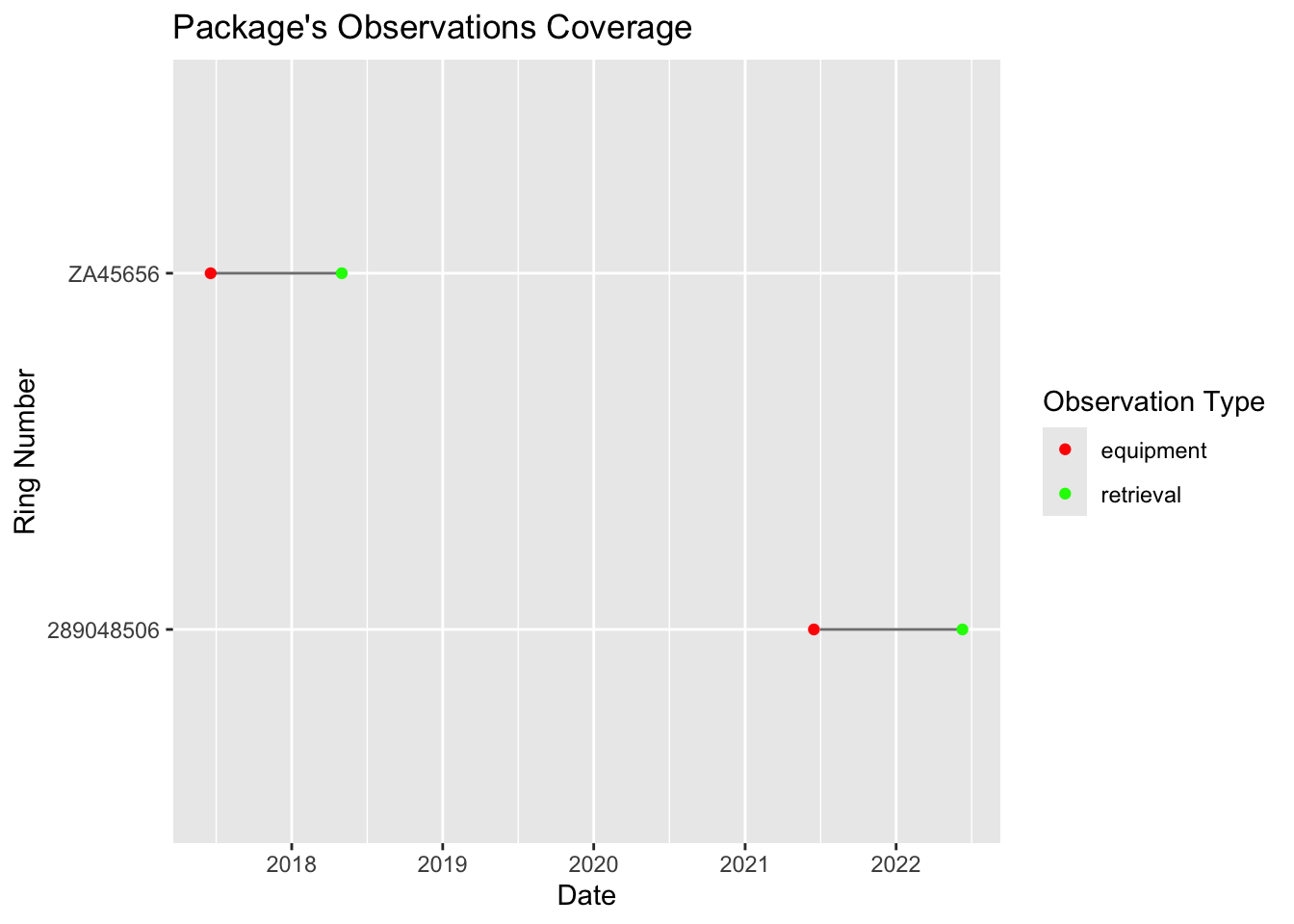
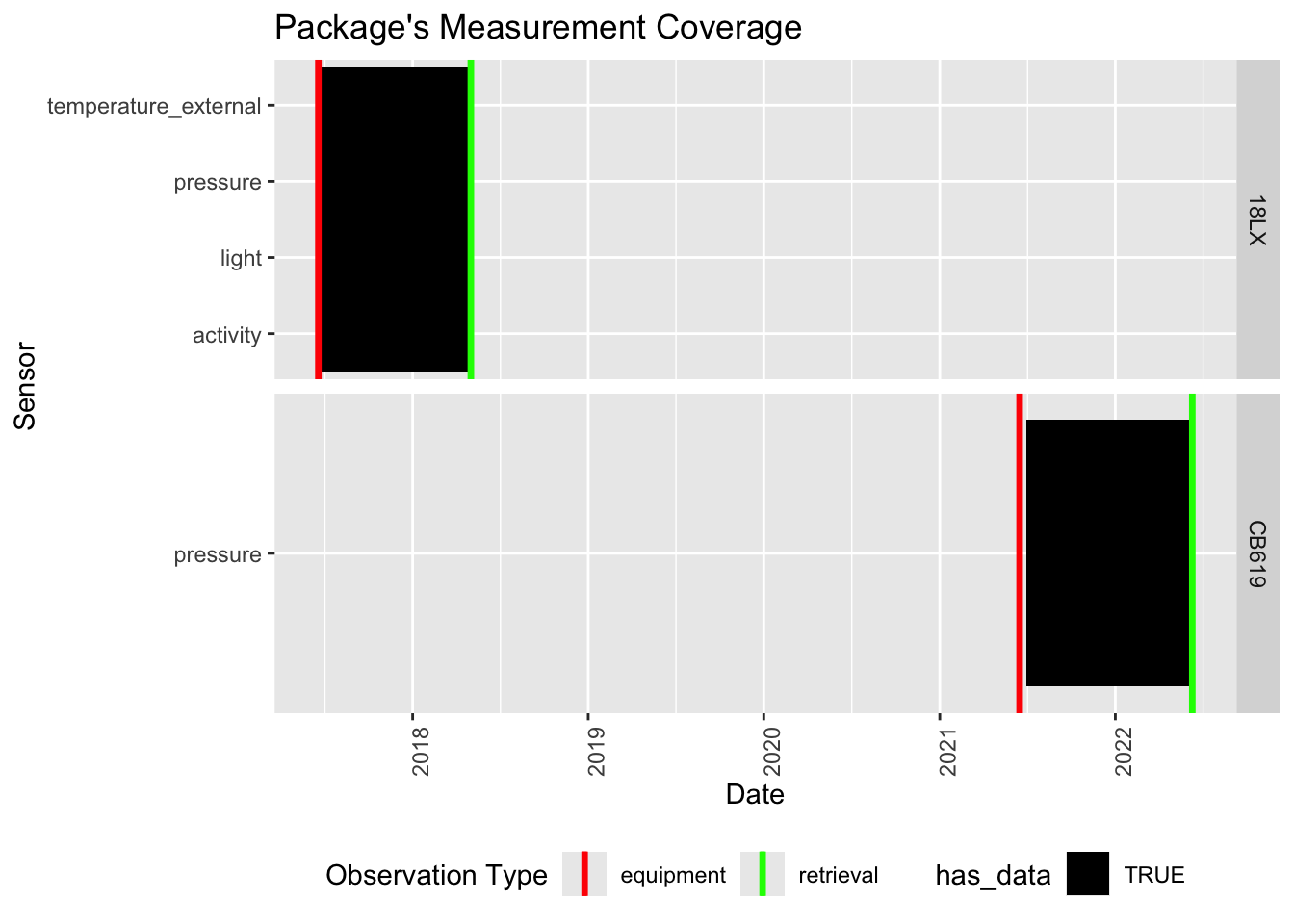
In this final stage, we check the coverage, tag count, and deployment/retrieval consistency to avoid outliers or missing information. To do so, plot each variable and check that (1) all the ring numbers are present, (2) all measurements are correct and no information is missing and (3) trajectories are correct.
14.5 Step 4. Write the package files
Now that we have checked the data, we can export pkg into the csv file that will be uploaded on Zenodo.
write_gldp(pkg, "data/datapackage")14.6 Step 5. Create the Zenodo draft record
Create a new draft on Zenodo, complete all metadata fields, BUT, do not submit it just yet.
WarningMandatory checklist
Complete all items below. If one or more are missing, the record may be returned for revision and not accepted in the community.
Review the GeoLocator DP curation policy before submission.
14.7 Step 6. Validate the Zenodo draft
Before submitting, read the draft back and validate exactly what Zenodo contains.
Reading a draft requires a Zenodo API token. Create one at Zenodo token settings and save it in your keyring:
keyring::key_set_with_value("ZENODO_TOKEN", password = "{your_zenodo_token}")pkg <- read_zenodo(
"10.5072/zenodo.472302",
draft = TRUE, # Draft record
sandbox = TRUE # Remove if using production Zenodo
)
Important
Run the official validation check on the draft package:
validate_gldp(pkg)If validation reports errors, fix the metadata/files and run the check again until valid.
14.8 Step 7. Submit
Once all checks are valid and metadata are complete, submit the Zenodo record! 🎉 A curator will review the data and get back to you if any revision is required.